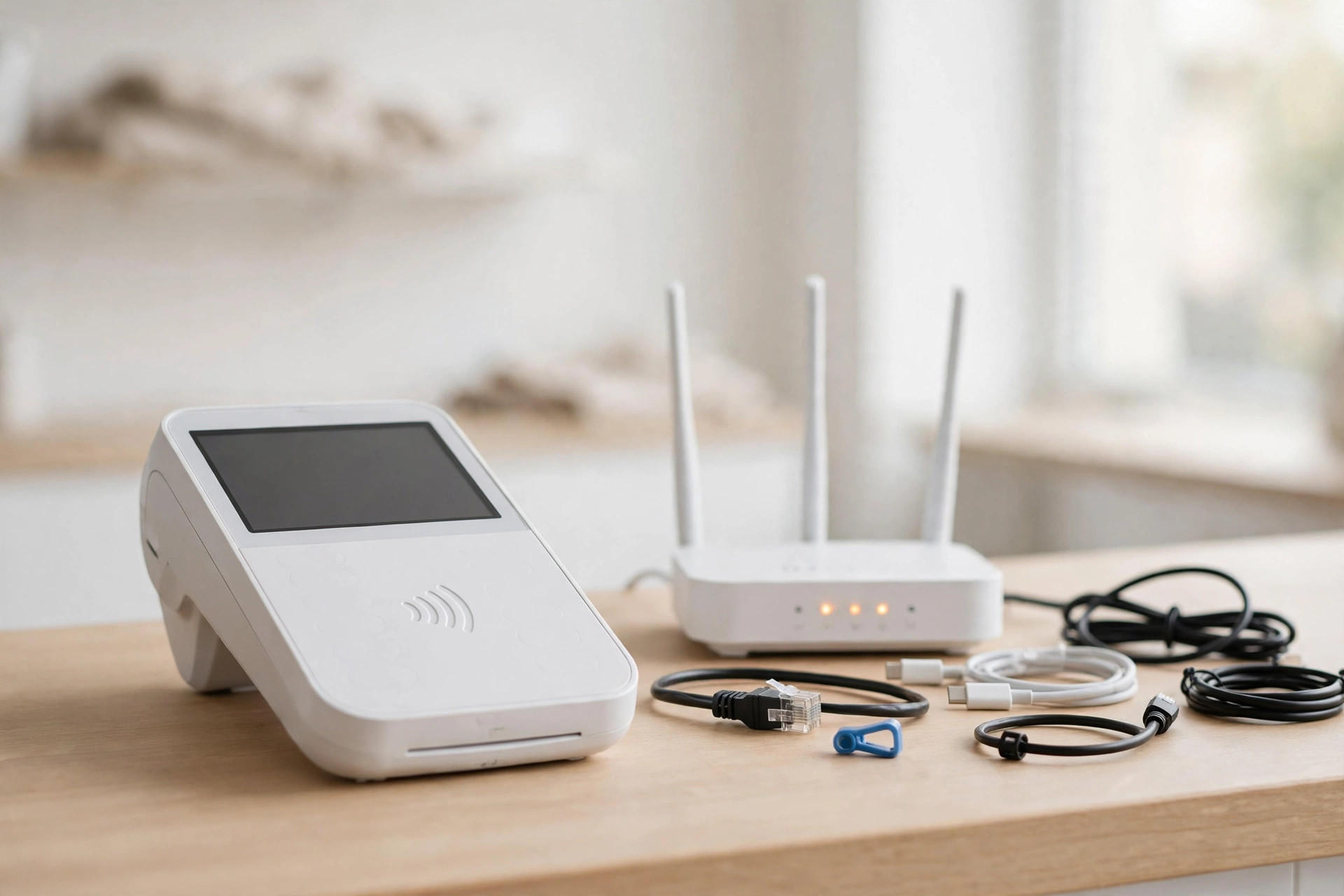
A dead terminal during business hours is a revenue emergency, but most connectivity outages are mundane: a loose cable, a router that needs a reboot, a Wi-Fi network that's up while the internet behind it is down. Work this sequence in order — each step rules out the most likely cause before you spend time on the next.
Before you touch anything: the 30-second triage
Ask two questions. Is it just this terminal, or everything? If every device is offline, skip to the router — it's not the terminal. Did anything change? New router, moved terminal, overnight power outage, software update — the most recent change is the prime suspect. Then check whether your processor has a status page showing an outage; if the platform is down, no amount of cable-wiggling helps, and you'll know in 30 seconds.
The diagnostic sequence (likelihood order)
- Power. Is the terminal actually on? Check the power light, the outlet, and the power brick. A surprising share of “dead terminal” calls end here.
- Cables. Follow the Ethernet cable end to end — terminal to switch or router. Unplug and reseat both ends; inspect for damage. If you have a spare cable, swap it: a cable that looks fine can still be the fault (technicians see this constantly on data-wire errors).
- Wi-Fi association. On wireless terminals, remove the network from the terminal's settings, restart the device, and reconnect fresh. Stale Wi-Fi credentials after a router change are a classic.
- The Wi-Fi-vs-internet trap. A terminal that shows “connected to Wi-Fi” is only connected to your router — not necessarily to the internet. Test from another device: if your phone's Wi-Fi has no internet either, the problem is upstream of the terminal.
- Router and modem. Power-cycle the router (unplug 10 seconds, plug back in, allow several minutes to boot). Then the ISP's modem — and note that unplugging may not work if it has battery backup; use its power button and give it a full five minutes.
- ISP and processor status. Check your ISP for a local outage and your processor's status page. If either is down, stop troubleshooting and switch to the fallback below.
- Software. Check for pending terminal/POS updates — outdated software causes intermittent connection drops that look like network faults. Update, restart, retest.
What success looks like: the terminal completes a live authorization (run a small real transaction, not just a connection test), the receipt prints, and the transaction appears in your processor dashboard within minutes.

The offline fallback: keep selling safely
When the outage is upstream and won't resolve quickly, you have options — with eyes open. Many POS systems offer an offline mode that stores card transactions locally and submits them when connectivity returns. The critical warning: offline transactions are not authorized in real time — if a card declines when the batch submits later, you don't get paid for that sale. Use offline mode for small tickets from known customers, set a per-transaction cap if your system allows it, and reconcile aggressively the moment you're back online.
Alternatives while you wait: accept cash and e-transfers, take card numbers via a virtual terminal on a cellular connection (a phone hotspot is a legitimate backup link), and tell customers what's happening — a sign on the door and a quick social post protect more goodwill than silence. A small discount for the inconvenience buys back the next visit.
When to stop and call support
| Symptom | Meaning | Action |
|---|---|---|
| Terminal shows tamper/security warnings | Anti-tamper triggered — the device may be disabled by design | Stop. Call your processor; don't try to bypass it. |
| Same cable works on another device, terminal still offline | Terminal-side fault (network stack or hardware) | Call processor support with the terminal model and error code. |
| Intermittent drops at the same time daily | Likely ISP or network congestion pattern | Call the ISP with the pattern documented; consider a cellular backup. |
| Everything local is fine, processor status shows an outage | Platform-side problem | Wait it out on the fallback; don't reconfigure anything. |
Real-world reports match this sequence. A retail merchant's card reader that connected to the phone but threw errors was fixed by the oldest trick in the book — disconnecting and reconnecting the reader to refresh the app-hardware relationship. A Verifone data-wire error walked through the same ladder: reboot, cable inspection, cable swap test, network settings, ISP check. The sequence works because the causes are boring and ordered.
FAQ
My terminal says it's connected to Wi-Fi but won't process. Why?
Wi-Fi association and internet connectivity are different things. The terminal reached your router but can't reach the processor — check whether other devices on the same Wi-Fi have internet, then work the router/modem steps.
Is it safe to take cards while offline?
It's a calculated risk: offline transactions aren't authorized until you're back online, so a declined card means an unpaid sale. Use it for small amounts, cap it, and reconcile immediately on reconnection.
How do I prevent this from happening again?
Keep terminal software updated, use a wired connection where possible (it's inherently more stable than Wi-Fi), keep a cellular hotspot as a backup link, and train staff on the first three diagnostic steps so the fix starts before you get the call.